
Store Performance Dashboard
The Store Performance Dashboard helps users monitor demand trends across their locations to support staffing, inventory, and operational decisions.
It provides a quick snapshot of where demand is rising, stable, or falling, allowing managers to act proactively — scaling up resources where needed and reallocating where demand declines.
Key Metrics
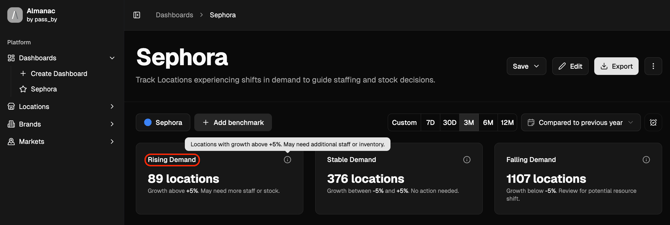
Rising Demand
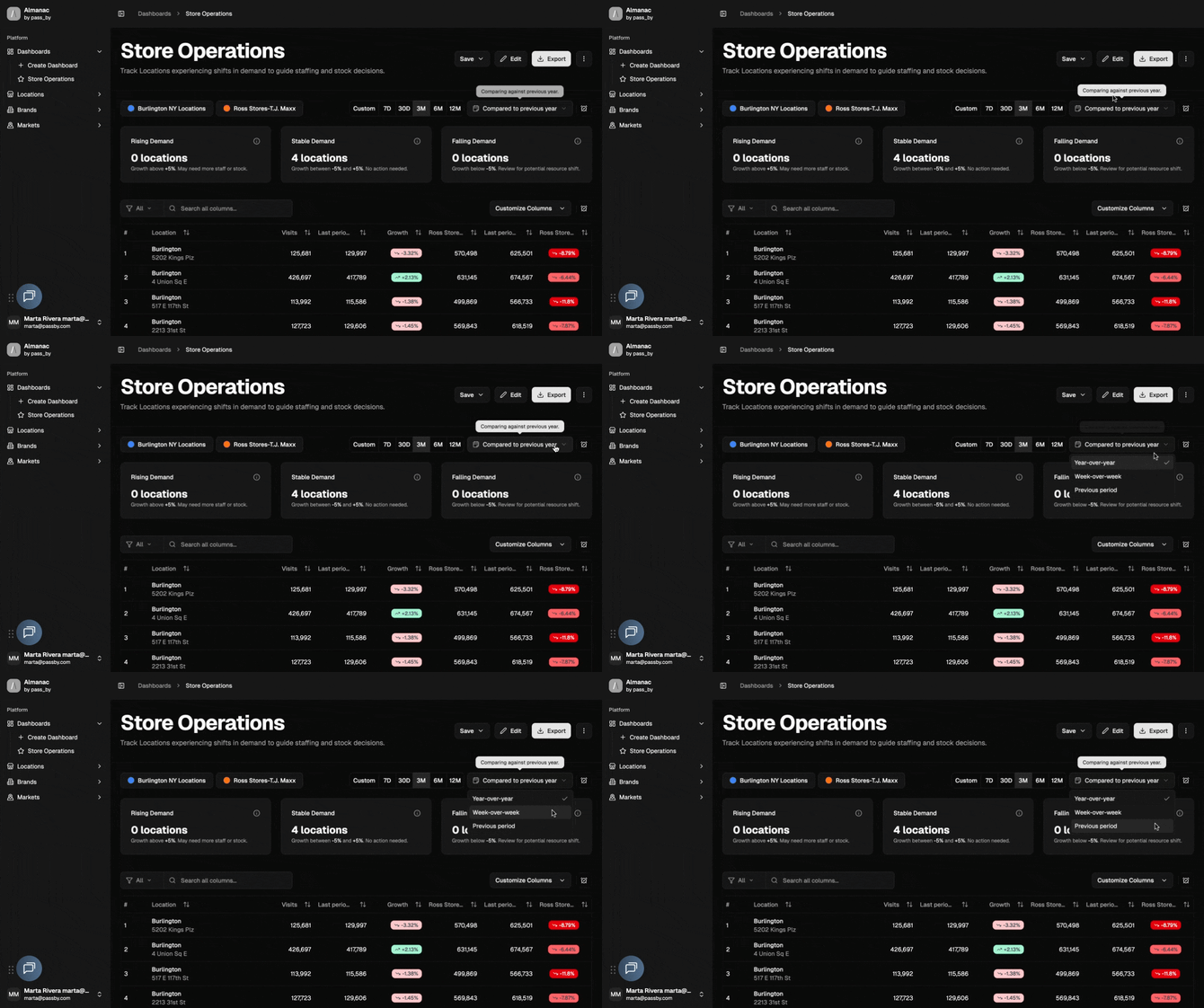
Displays the number of locations where visit growth is above the +5% threshold. These stores may require additional staffing or stock to meet increased demand.
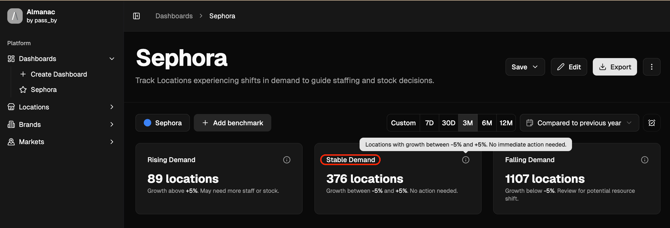
Stable Demand
Shows how many locations have growth between –5% and +5%, indicating consistent performance. No action is usually required for these locations, but they serve as a reference for operational stability.
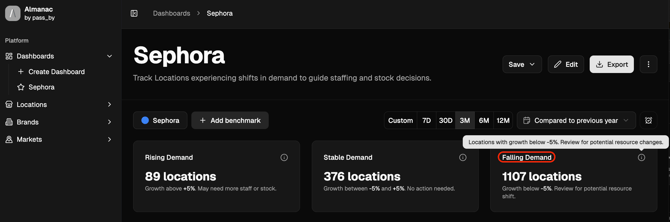
Falling Demand
Lists locations where visits have decreased by more than –5%, suggesting potential overcapacity. These locations may benefit from resource reallocation, such as adjusting staffing or redistributing inventory.
How It Works
Each location’s demand is calculated by comparing visit growth between the selected period and the comparison period (e.g., year-over-year or previous period). By default:
- Rising Demand: Growth > +5%
- Stable Demand: Growth between –5% and +5%
- Falling Demand: Growth < –5%
These thresholds can be customized to fit your business needs.
Editing Thresholds
You can adjust the demand thresholds by clicking the Edit button in the dashboard header. Changing these settings allows you to fine-tune how demand is classified based on your organization’s sensitivity to growth or decline.

Table View
Below the summary metrics, the dashboard displays a detailed table listing all locations. Columns include:
- Location name and address
- City and State
- Visits for the selected period
- Visits for the comparison period
- Growth rate (%)
Use this view to pinpoint exactly which locations fall into each demand category.
You can:
- Show or hide columns via the Columns dropdown
- Sort by growth rate or visits to identify top- and bottom-performing sites
Filters & Benchmarks
Use the Filter Bar to refine your analysis:
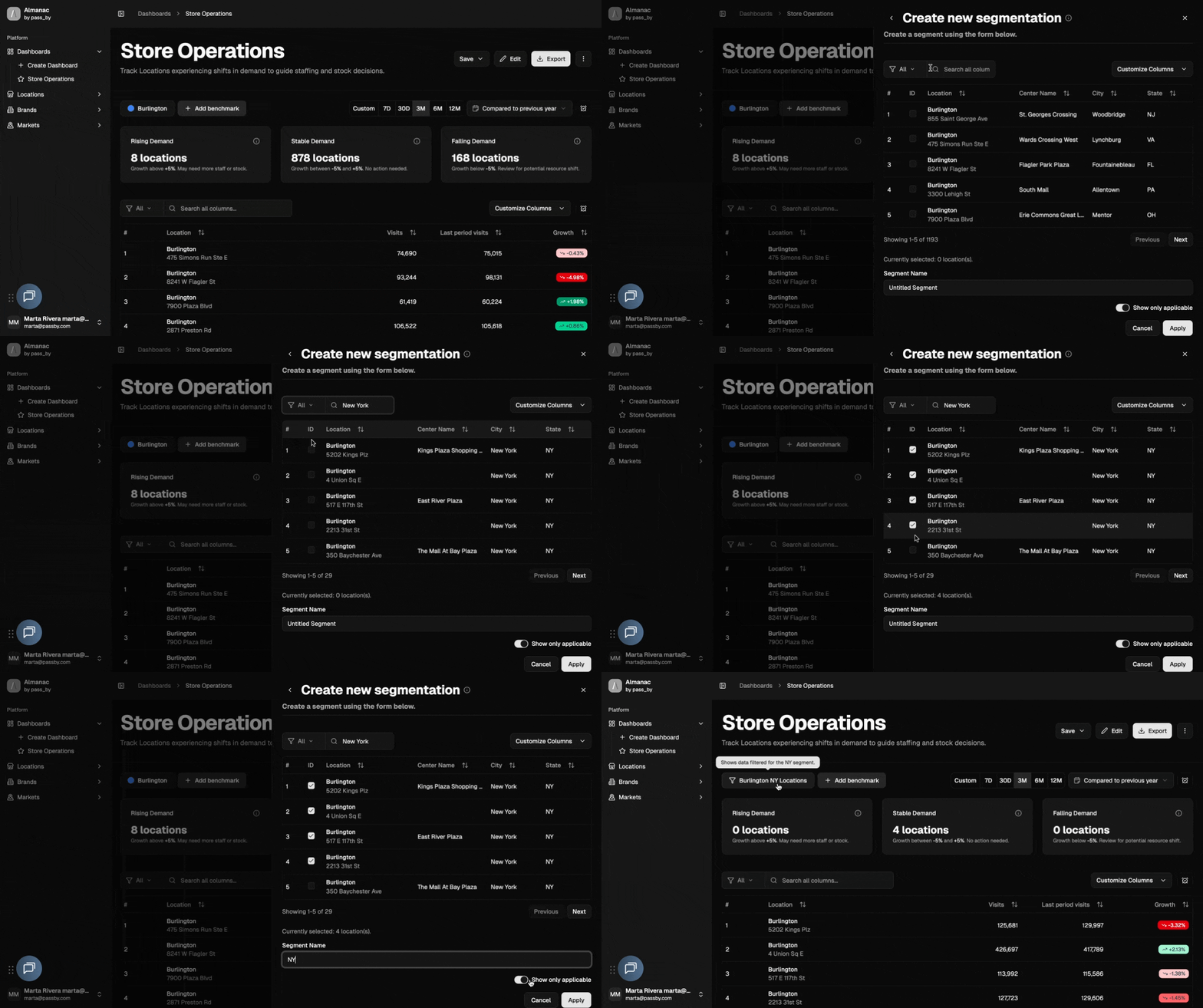
- Add a Segment: Focus on a specific region or store type.
- Add a Benchmark: Compare your brand’s demand trends against a Smart Benchmark or manual benchmark.
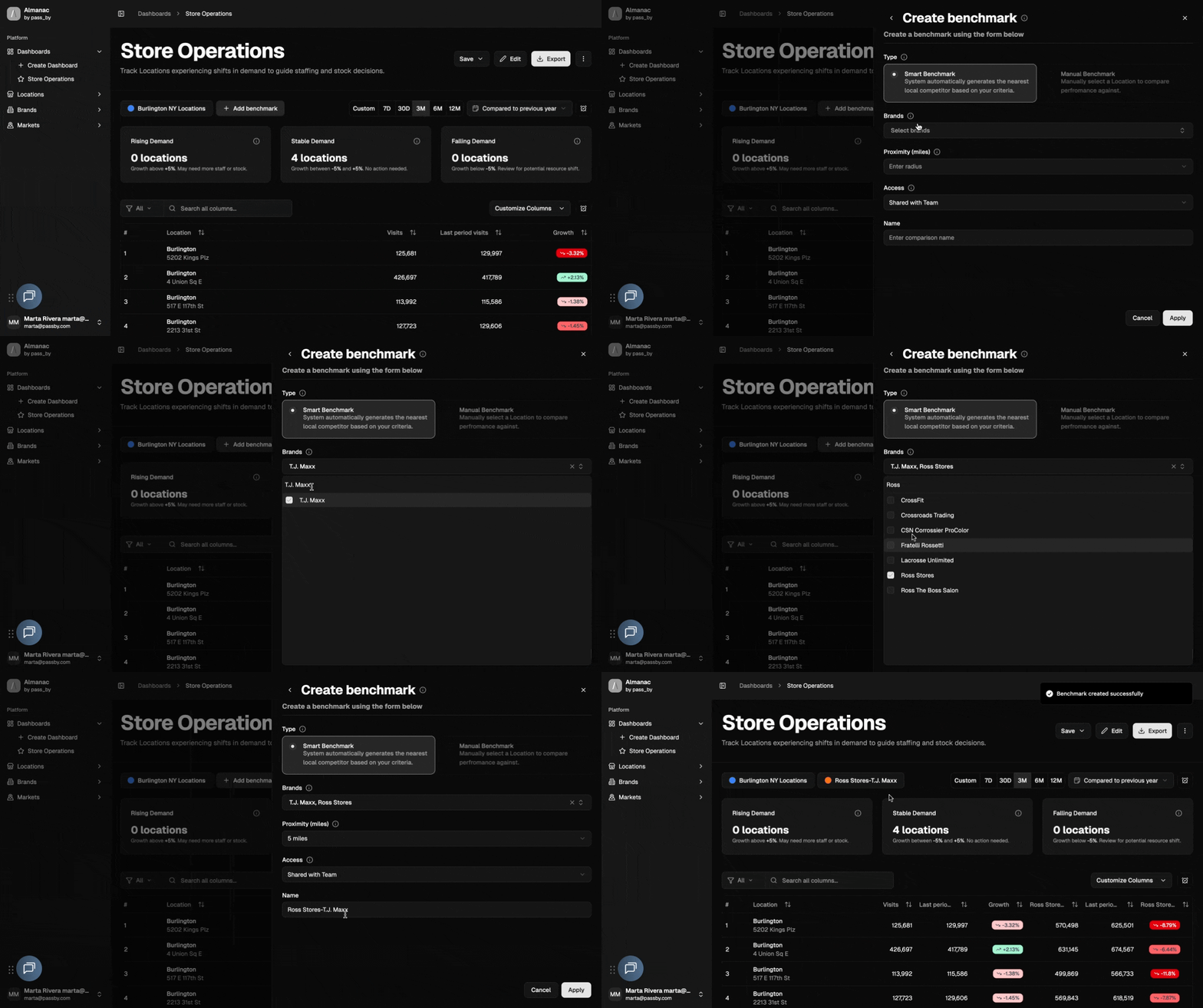
These filters let you isolate specific trends and understand how your brand’s demand compares to nearby competitors.
Date & Comparison Settings
You can adjust the date range using the Date Picker, located in the filter bar. Switch between:
- 7 Days, 30 Days, 3 Months, 6 Months, or 12 Months
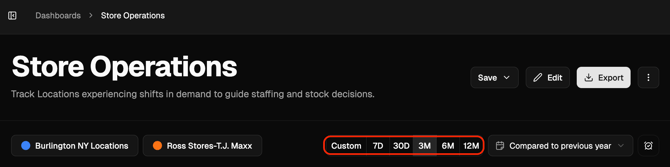
- Define a custom date range

You can also select the comparison period (e.g., previous year, previous period) to change how growth is calculated.
Save & Export Options
At the top of the dashboard, you can:
- Save changes to the current dashboard view, or
- Save As to create a new version (e.g., one for short-term vs. long-term analysis).
All dashboards can also be exported as CSVs for offline analysis or reporting.
Insight Example: A regional manager notices six stores in the “Falling Demand” category and two in “Rising Demand.” By comparing performance by region and reviewing benchmarks, they identify an opportunity to shift staff and stock to high-growth areas — improving efficiency and meeting customer demand more effectively.
Next Steps
- Learn how to use Benchmarks to compare store performance against competitors.
- Explore Segments to filter results by region or store type.
- Combine this dashboard with the Competitor Benchmarking Dashboard to understand demand changes in market context.