
Competitor Benchmarking Dashboard
The Competitor Benchmarking Dashboard allows you to track your brand’s performance against nearby competitors across all locations. It provides a visual, data-driven view of how your brand performs relative to a benchmark set — helping you identify strengths, weaknesses, and market opportunities at a glance.
This dashboard uses a Smart Benchmark setup, which automatically identifies the most comparable competitor locations based on:
- Competitor brands you select
- A defined proximity radius (in miles)
This ensures all comparisons are localized and relevant, matching your stores with the closest and most similar competitor sites for an accurate, apples-to-apples performance view.
Key Metrics
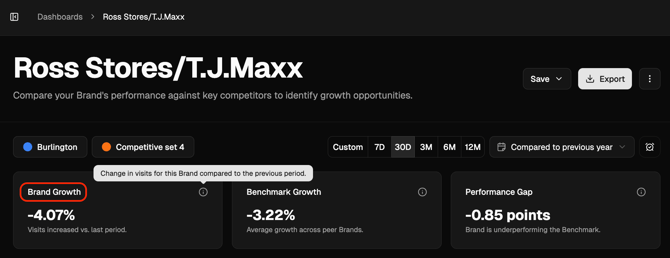
Brand Growth
Shows the average growth rate across all your locations over the selected period.
- A positive value means visits increased compared to the previous period.
- A negative value means visits decreased.
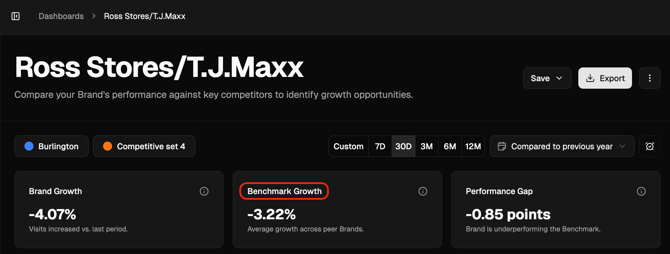
Benchmark Growth
Displays the average growth rate across all benchmark locations — representing how the competitive set is performing overall. This helps you gauge whether broader market conditions or local dynamics are influencing performance.
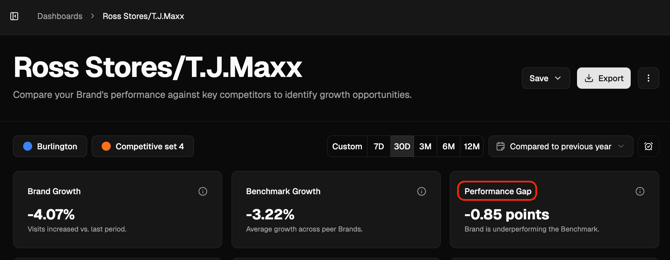
Performance Gap
Highlights the difference between your Brand Growth and Benchmark Growth, expressed in percentage points.
- Positive Performance Gap: Your brand is outperforming competitors.
- Negative Performance Gap: Your brand is underperforming relative to competitors.
This metric provides a quick, high-level indication of comparative success.
Dashboard Sections
Performance by Segment
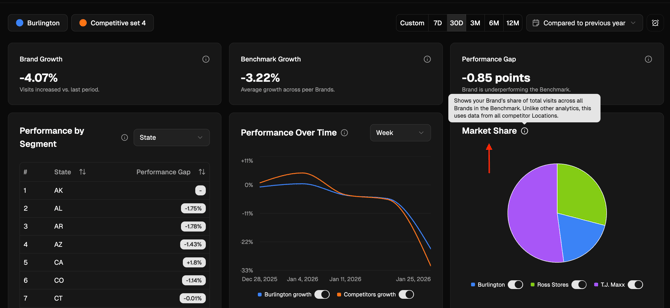
Breaks down performance by different segments such as State or Site Type. Each row shows the Performance Gap by segment, allowing you to quickly identify where your brand is performing above or below benchmark.

Performance Over Time
Displays how your brand’s performance and benchmark trends evolve over time. You can adjust:
- The time interval (Day, Week, Month, or Quarter)
- The date range using the Date Picker
This view helps reveal seasonality, recovery patterns, or emerging gaps in performance.
Market Share
Shows the distribution of total visits between your brand and your selected competitors. Unlike the other metrics, Market Share uses all available data from the included competitors to illustrate overall demand distribution in your market.
How to Use It
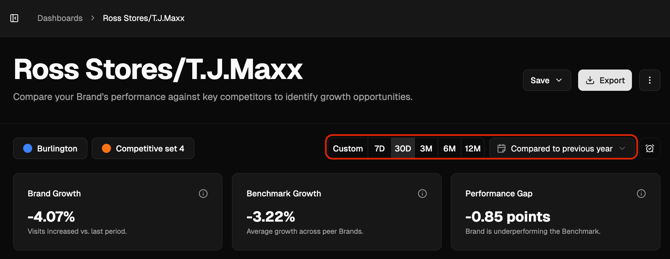
The Filter Bar at the top of the dashboard allows you to control the scope of your analysis:
- Select a Segment: Filter the dashboard to focus on specific regions or groups of locations.
- Add or adjust a Benchmark: Choose a Smart Benchmark or switch to a different competitive set.
- Set a Date Range: Use the Date Picker to adjust the time window for your analysis.
All filters work dynamically — as you adjust them, the dashboard instantly updates to reflect your chosen criteria.
Actions
At the top right of the dashboard, you can:
- Save your dashboard view (either update the existing view or create a new saved dashboard).
- Export data to CSV for deeper analysis outside the platform.
These tools make it easy to store your preferred views or share standardized reports.
Insight Example: A brand manager reviews the Performance Gap and notices their brand underperforms in Illinois but leads in New York. By examining the Performance by Segment table, they see strong benchmark competition in Illinois. Adjusting the Benchmark proximity or refining the Segment filter can help isolate why the local performance differs — revealing specific opportunities for improvement.
Next Steps
- Learn more about how to create and manage Smart Benchmarks.
- Explore the Segments feature to group stores by geography or type.
- Use the Date Picker to align all comparisons with your preferred reporting cadence.