![logo-2 (1)-Oct-10-2023-11-05-48-5121-AM.png]](https://help.passby.com/hs-fs/hubfs/logo-2%20(1)-Oct-10-2023-11-05-48-5121-AM.png?height=50&name=logo-2%20(1)-Oct-10-2023-11-05-48-5121-AM.png)
Overview
The Places section of Almanac lets you drill into performance for a specific store. With Spend Insights enabled, you can now view localized sales and transaction trends to understand how a store’s performance compares to the surrounding market.
Why Use Spend in Places
- Analyzing store-level demand in context with neighborhood benchmarks
- Supporting lease and real estate decisions with real-world data
- Spotting anomalies between visits and transactions in the local area
How to View Spend for a Store
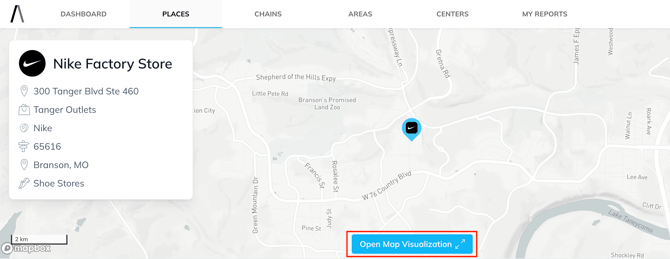
- Navigate to the Places tab.
- Select a store (e.g., Gucci, East Hampton).
- Click Open Map Visualization.
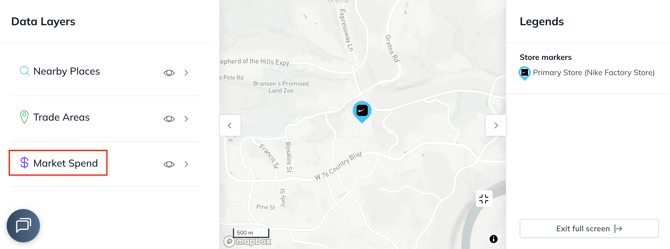
- Choose Market Spend and select Transactions or Sales.
- Pick an industry category like “Total Apparel.”
- Press Apply to visualize market data around the store.
What You´ll See
The Market Spend section allows you to use local sales and transaction trends to put your performance in context. You can filter and customize the data you see using the following options:
1. Industry
Select the industry to filter spend data from one of the following categories:
-
Art, Entertainment, and Recreation
-
Accommodations
-
Automotive Fuel
-
Bars / Taverns / Nightclubs
-
Cosmetics and Beauty Services
-
Consumer Electronics
-
Department and General Merchandise
-
Eating Places
-
Grocery and Food Stores
-
Home Furnishings / Furniture
-
Jewelry and Giftware
-
Motor Vehicles (excluding Fuel)
-
Professional, Scientific, and Technical Services
-
Total Apparel
-
Total Retail
Note: You can only select one industry at a time in this section.
2. Data Type
Choose the type of spend data you want to view:
-
Sales – Displays revenue trends.
-
Transactions – Displays the number of transactions.
3. Time Period
Select the time period for your data view from:
-
Latest 90 days
-
Latest 30 days
-
Latest 7 days
-
Custom date range
4. Compare
Choose how you want to compare the selected time period:
-
Year-on-year – Compares the current period to the same period last year.
-
Week-on-week – Compares the current period to the previous period.
-
Custom date range – Compares the current period to a date range you choose.
Once you’ve finalized your selections, click Load Spend Trends to generate your analysis.
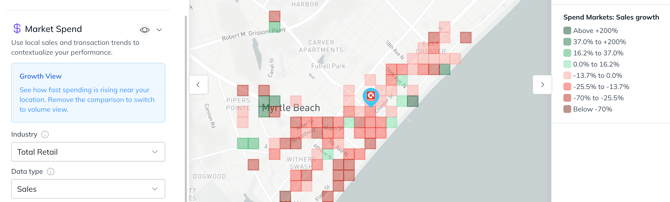
Growth View: See how fast spending is rising near your location. Remove the comparison to switch to volume view.
Spend Markets: Sales or transactions growth
A color-coded map, located on the left side of your screen, shows the sales growth in the local market for the selection of the two periods that you have previously selected.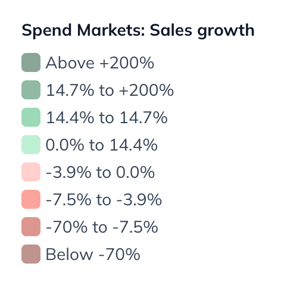
Using the map
To view the sales or transactions growt, simply hover your mouse over any of the four quadrants on the map. The information will then appear automatically.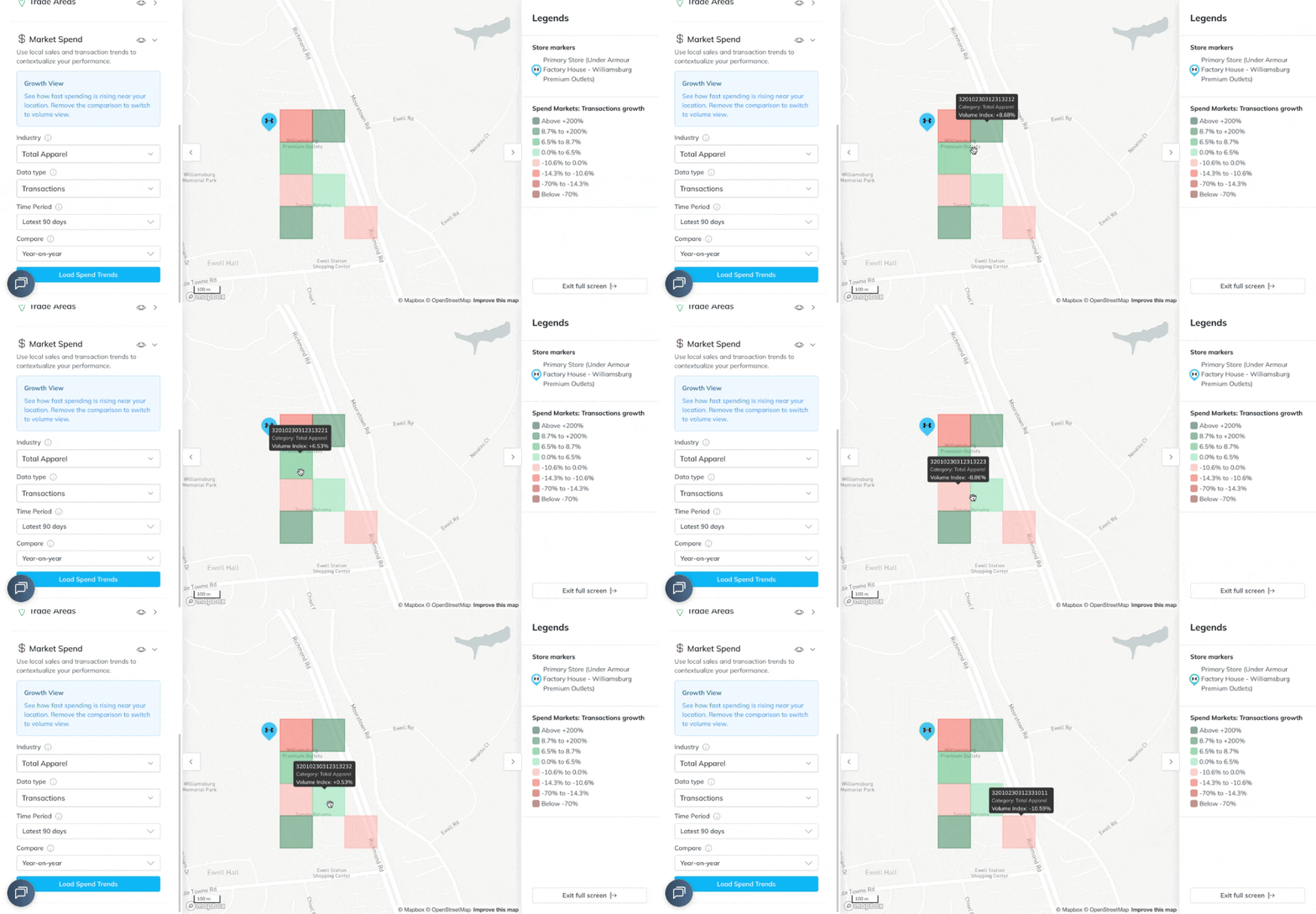
Understanding the sales or transactions growth.
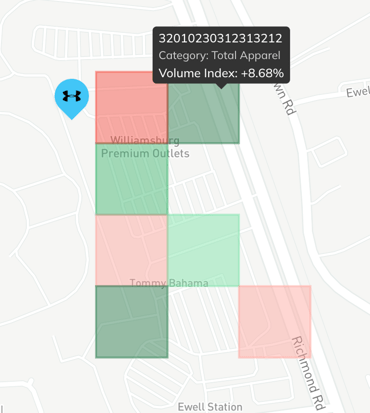
Spend data is delivered as an index rather than raw sales numbers. The volume index shows average daily transaction density in nearby areas.
Hovering over a tile reveals:
- The category (e.g., “Total Apparel”)
- The tile’s volume index value
Tips and Considerations
💡 Tip: Spend data is most insightful when aligned with internal KPIs. Export results and overlay your sales numbers for a complete picture.
⚠️ Note: Data availability depends on our suppliers criteria for minimum volume and competitive presence in an area.
📉 Limitation: Data is delivered with a ~2-week delay, ideal for strategic analysis, not real-time decisions.