![logo-2 (1)-Oct-10-2023-11-05-48-5121-AM.png]](https://help.passby.com/hs-fs/hubfs/logo-2%20(1)-Oct-10-2023-11-05-48-5121-AM.png?height=50&name=logo-2%20(1)-Oct-10-2023-11-05-48-5121-AM.png)
The Site Report lets you analyze any trade area in the country.
Step 1: Set the Trade Area
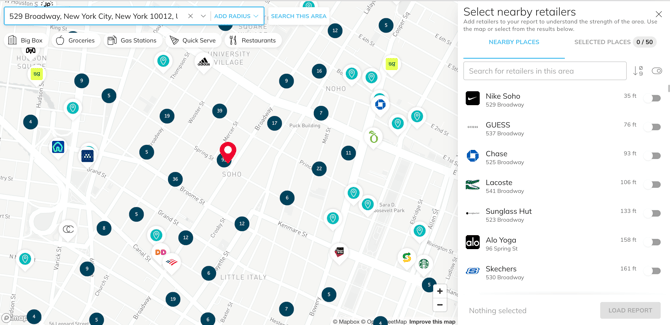
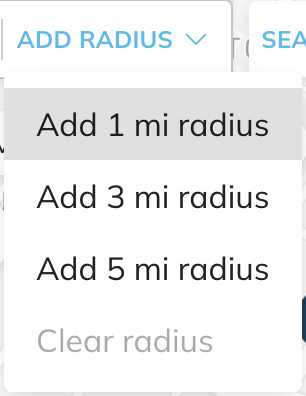
Input any address to drop a pin on that location. By default, the platform will show all stores within a 1-mile radius. You can expand this to 3 or 5 miles by clicking “Add Radius.”
Use the search bar to the right of the report to select specific stores you want included in the analysis. You can include up to 50 locations at a time.
Step 2: Choose the Time Period
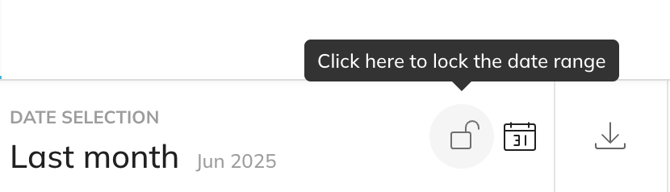
Once the report has loaded, select the time period you want to analyze. Lock the date range by clicking the lock icon, so it remains fixed as you explore the data.
Report Overview
Traffic Ranking
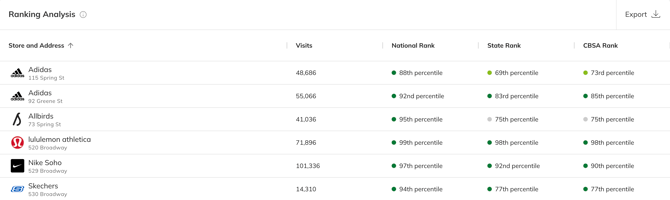
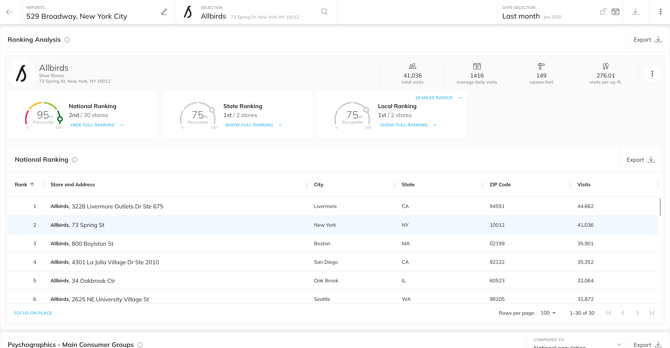
The top section shows total foot traffic for each store during the selected period. Each store is ranked relative to its national, state, and CBSA performance within its brand.
Audience Indexing
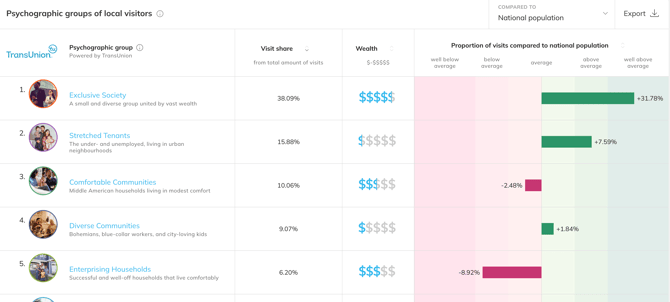
See which consumer types each store is over- or under-indexing on, compared to the national or state population.
Psychographic Profiles
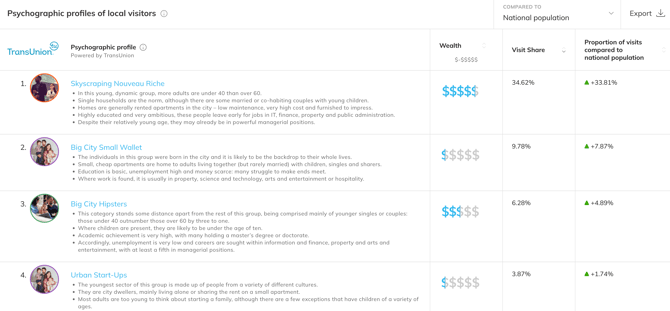
View the psychographic segments visiting these stores, including visit share for each segment.
Demographic Profiles
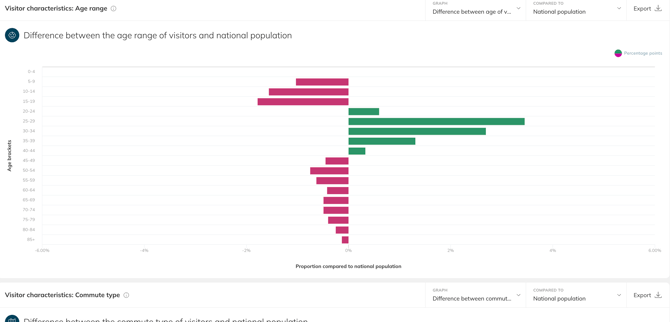
See the demographic breakdown of store visitors across age, income, education, commute type, industry, and more.
Store-Level Filtering and Sharing
You can filter the report to view data for any individual store.
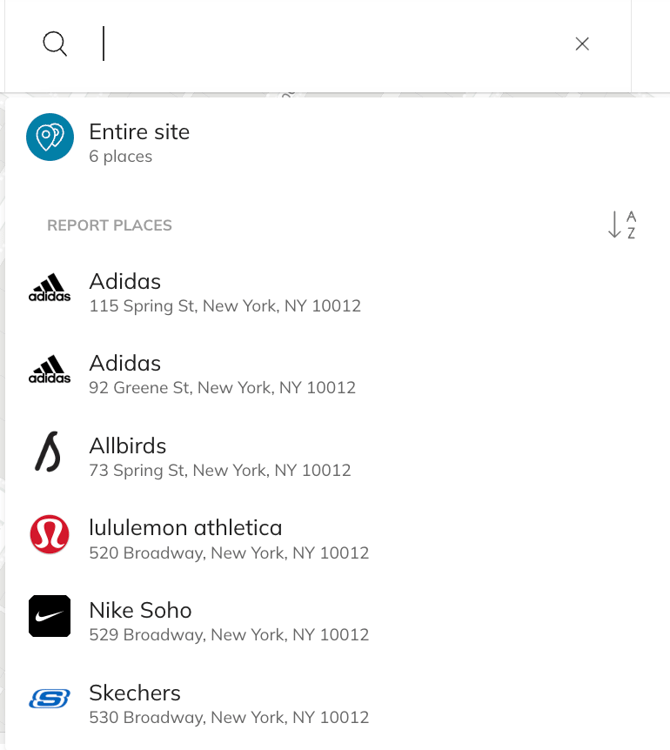
This provides more detailed traffic and ranking data, as well as a focused demographic and psychographic breakdown for that location
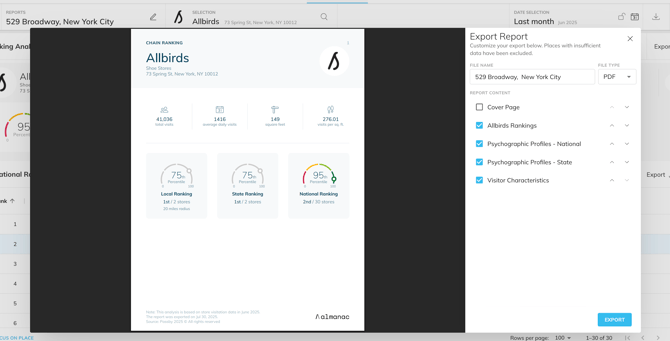
To share the report internally, export it as a PDF. You can choose to include a cover page, which will automatically populate with the report name you’ve given.