![logo-2 (1)-Oct-10-2023-11-05-48-5121-AM.png]](https://help.passby.com/hs-fs/hubfs/logo-2%20(1)-Oct-10-2023-11-05-48-5121-AM.png?height=50&name=logo-2%20(1)-Oct-10-2023-11-05-48-5121-AM.png)
The Site Match report analyzes every retail center in the country where your brand is not currently present and scores them based on how well they align with your customer selection criteria.
Step 1: Define Your Consumer Criteria
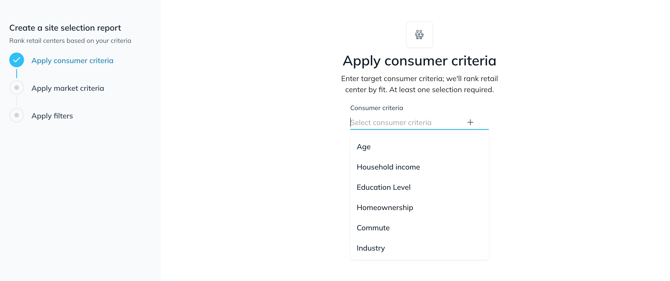
When you open the report, you’ll be prompted to set your consumer criteria. This allows you to define your target audience using attributes such as:
-
Age
-
Household income
-
Education level
-
Homeownership status
-
Commute pattern
-
Industry of employment
Step 2: Define Your Market Criteria
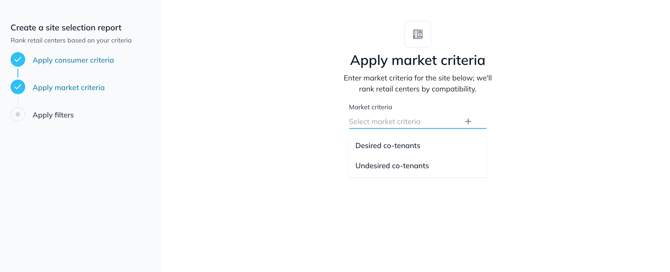
Next, you’ll set your market criteria. This includes identifying:
-
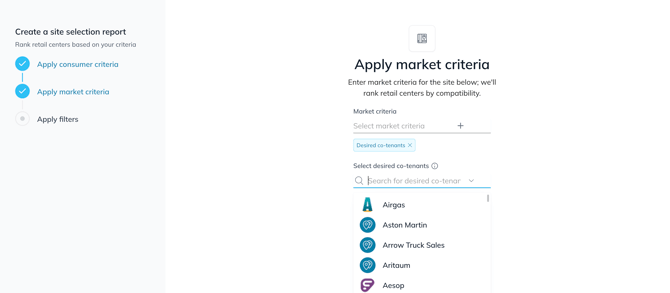
Desired co-tenants – brands you want to be located near
-
Undesired co-tenants – brands you want to avoid
You can select from any brands available in the platform.
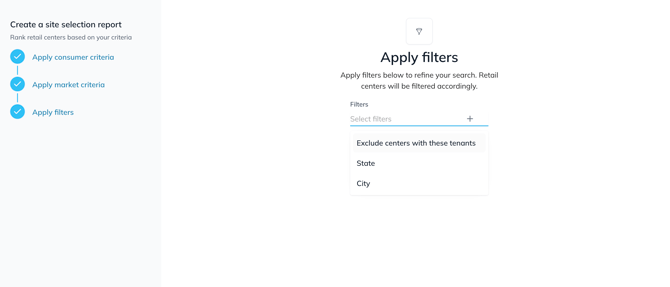
Step 3: Exclude Existing Locations and Apply Geography
You’ll then have the option to:
-
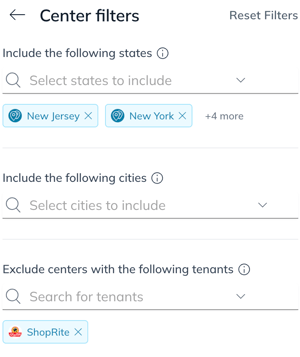
Exclude retail centers where you’re already present
-
Apply geographic filters to narrow the search by region, state, or custom area
Scoring and Results
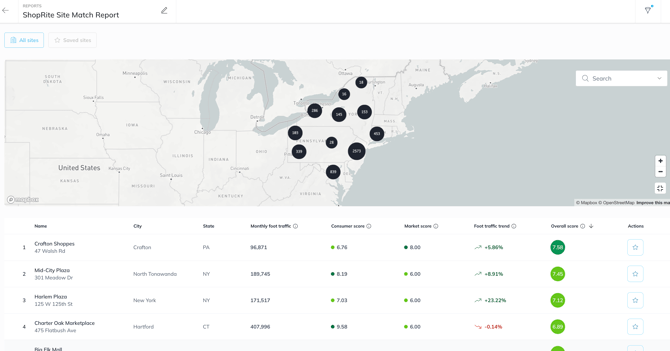
Once the report loads, all eligible retail centers will be ranked by an Overall Score ranging from 0 to 10. A score of 10 indicates a center that is a strong match for your brand.
The Overall Score is made up of three equally weighted components:
-
Consumer Score – How closely the local demographics align with your defined target audience
-
Market Score – How well the tenant mix matches your co-tenancy preferences (score increases for desirable co-tenants and decreases for undesired ones)
-
Foot Traffic Trend – The year-over-year change in foot traffic for each center
Additional Functionality
-
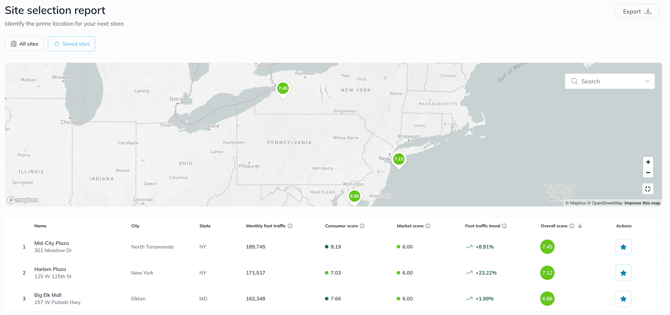
Star Sites: Use the final column to star retail centers you want to revisit. Starred sites can be quickly accessed using the Saved Sites filter.
-
Export Options: Export the table as it appears in the platform—either all sites or just your saved selections.
Refining the Report
Use the Filter button in the top right to refine your results further:

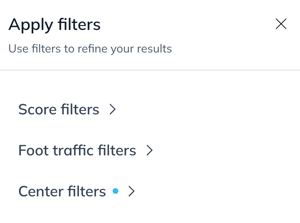
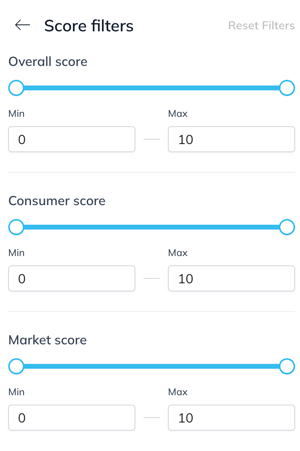
Score Filter: Filter by Overall Score or any of the individual scores
-
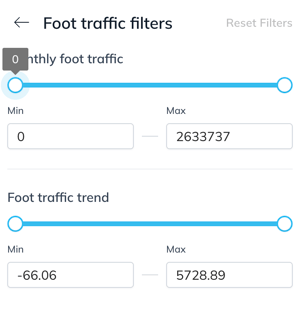
Foot Traffic Filter: Set minimum or maximum monthly traffic thresholds, or filter by year-over-year foot traffic change
- Center Filter: Refine your results geographically