![logo-2 (1)-Oct-10-2023-11-05-48-5121-AM.png]](https://help.passby.com/hs-fs/hubfs/logo-2%20(1)-Oct-10-2023-11-05-48-5121-AM.png?height=50&name=logo-2%20(1)-Oct-10-2023-11-05-48-5121-AM.png)
The Competitor Report enables you to compare your brand’s performance against defined competitors across traffic, demographics, and trade areas.
Step 1: Claim Your Brand
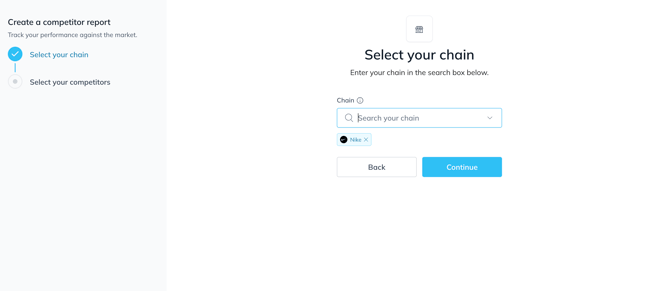
To get started, you'll need to claim your brand. This ensures that all comparisons are tied to your actual store network.
Step 2: Select Competitors
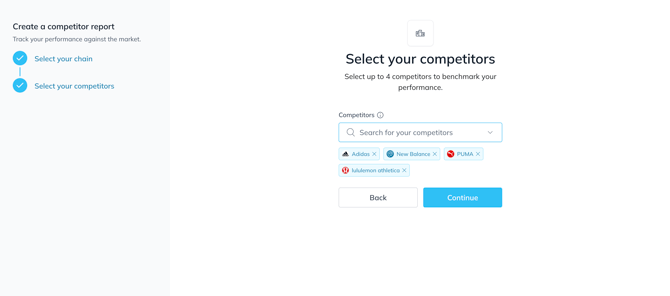
You can select up to four competitor brands at a time. If you want to analyze more, simply create multiple Competitor Reports with different selections.
Report Overview
Once loaded, the report provides several key views:
1. Store Traffic Comparison
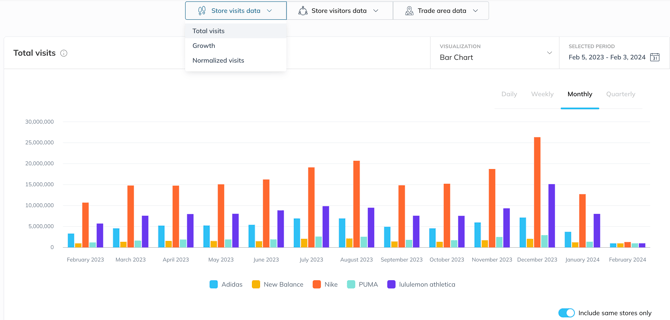
The first view displays foot traffic trends. You can customize:
-
Date range
-
Time granularity (daily, weekly, monthly)
-
Traffic type:
-
Total Visits – total traffic across all stores
-
Growth – period-over-period change in traffic
-
Normalized Visits – average traffic per store
-
By default, the report uses Same Store traffic, which only includes stores open for the entire selected period. To include all stores, toggle off the “Include same stores only” option.
2. Store Visitors
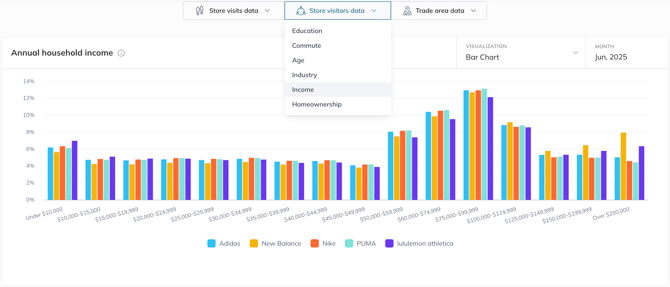
This tab compares visitor demographics across your brand and selected competitors. Metrics include:
-
Education level
-
Commute pattern
-
Age
-
Industry
-
Income
-
Homeownership
Data is grouped by month, with the ability to go back in time to track changes over time.
3. Trade Area Insights
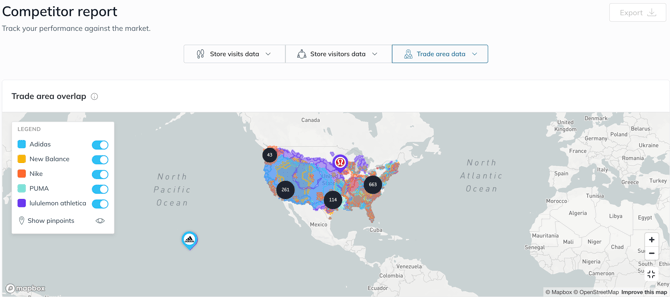
Here, you can visualize where each brand is drawing its customers from:
-
Toggle brands on or off to isolate comparisons
-
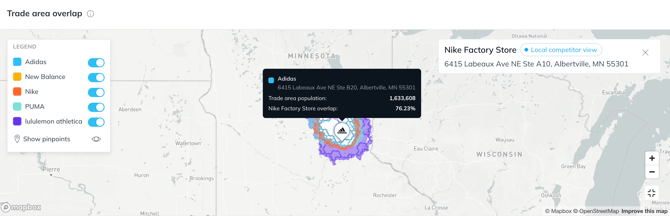
Click into any of your individual stores to view:
-
Your store’s trade area
-
Where competitor trade areas overlap
-
Areas where competitors attract customers and you don’t
-
Filters and Customization
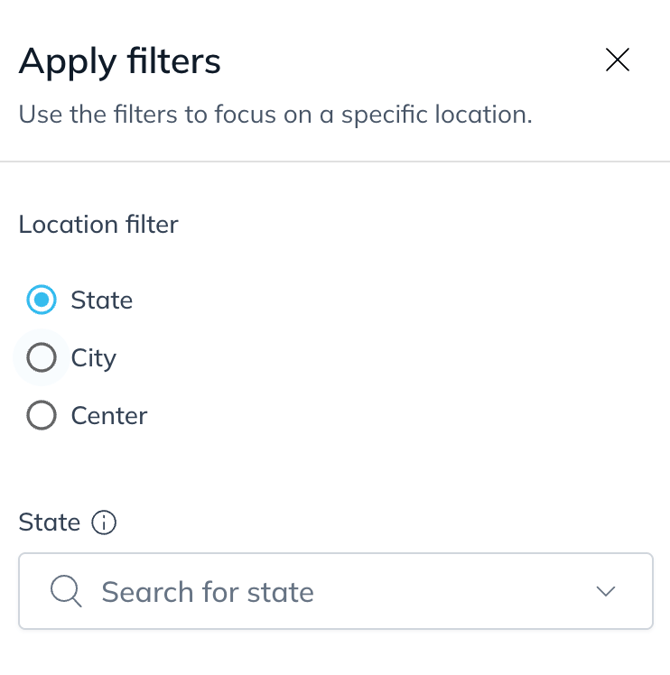
By default, the report covers nationwide data. Use the filter button in the top right to narrow the focus by:
-
State
-
City
-
Retail center
You can select multiple options within a single filter type, but not across types (e.g., filter by multiple cities or multiple states, but not both at the same time).
You can also edit the report to change the brands you want included.