![logo-2 (1)-Oct-10-2023-11-05-48-5121-AM.png]](https://help.passby.com/hs-fs/hubfs/logo-2%20(1)-Oct-10-2023-11-05-48-5121-AM.png?height=50&name=logo-2%20(1)-Oct-10-2023-11-05-48-5121-AM.png)
This report allows you to compare multiple chains or individual locations across traffic, benchmarking, and customer demographics.
Step 1: Set Up Your First Selection
Start by selecting your first Chain or Place. Choose the geography (nationwide, state, or state) and time period you want to analyze.
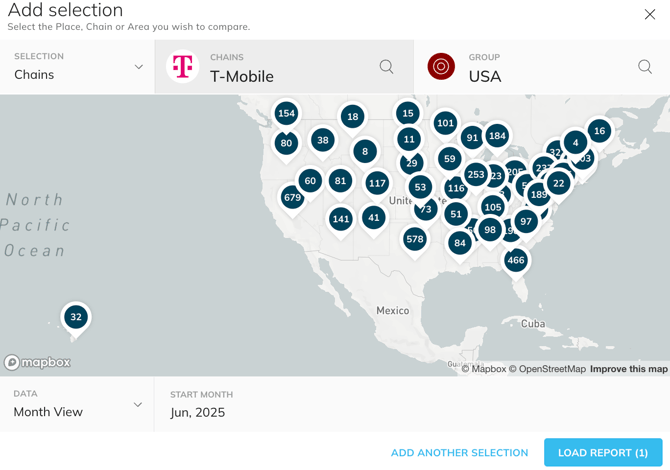 Step 2: Add More Chains or Places
Click “Add Another Selection” to include additional brands or locations. You can add as many as needed to build your comparison.
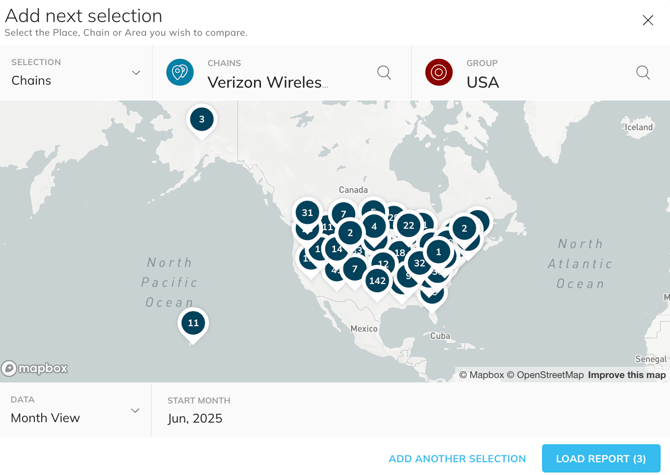 Step 3: Load the Report
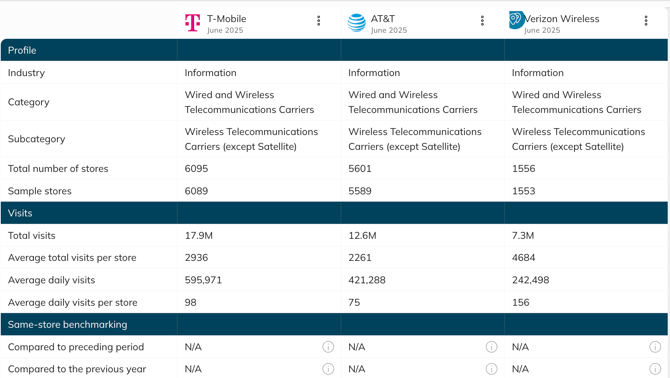
Once your selections are set, click “Load Report.” The report will display side-by-side comparisons for:
-
Foot traffic metrics
-
Same store benchmarking, where applicable
Step 4: Explore Demographic Comparisons
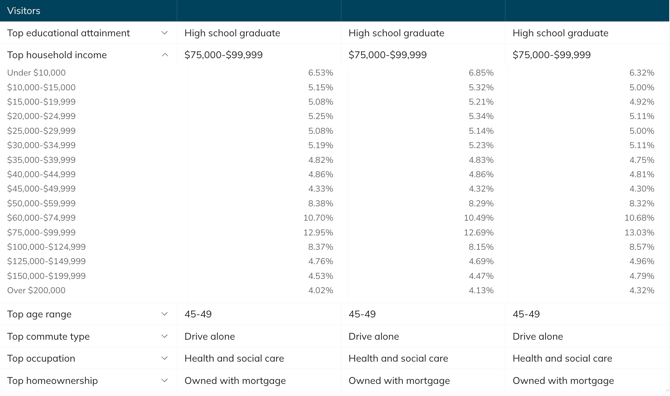
Scroll down to see how each selection compares across key demographic attributes. You can expand any of these sections for a more detailed view, including breakdowns by:
-
Educational attainment
-
Household income
- Age range
- Commute type
- Occupation
- Homeownership