
Date Picker
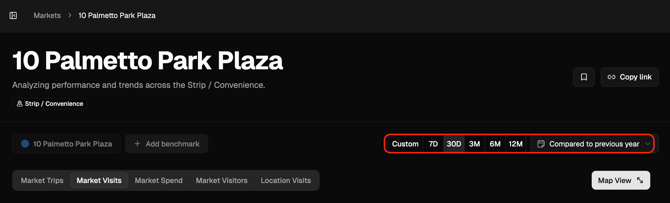
The Date Picker in Almanac controls the time frame for every analysis you run. It’s accessible from the Filter Bar across Dashboards, Brands, Locations, and Market pages, letting you set the exact period of data you want to review.
You can choose from preset periods, define custom date ranges, or apply relative time windows to ensure your analysis reflects the right context — whether you’re examining recent performance or long-term trends.
How It Works
Preset Date Ranges
Quickly select a standard time window for analysis:
- 7 Days
- 30 Days
- 3 Months
- 6 Months
- 12 Months
These options provide fast access to common reporting periods used throughout the platform.
Custom Date Ranges
Selecting Custom opens up flexible controls for defining your own date range. You can choose between Fixed Dates or Relative Dates, depending on your needs.
Fixed Dates
- Specify exact start and end dates.
- Enter dates manually or use the calendar selector for easier input.
- Fixed ranges are static — when saved or shared, they always reference those exact dates.
Relative Dates
Relative options allow you to create date ranges that update automatically over time. Two tabs are available:
- Since: Includes all data from a selected point in time up to the most recent available date.
- Last: Lets you define a rolling window, such as “Last 5 Weeks” or “Last 12 Months.”
Note: Relative ranges continually refresh when bookmarked or shared, ensuring your dashboards always display the latest data for that timeframe.
Comparisons
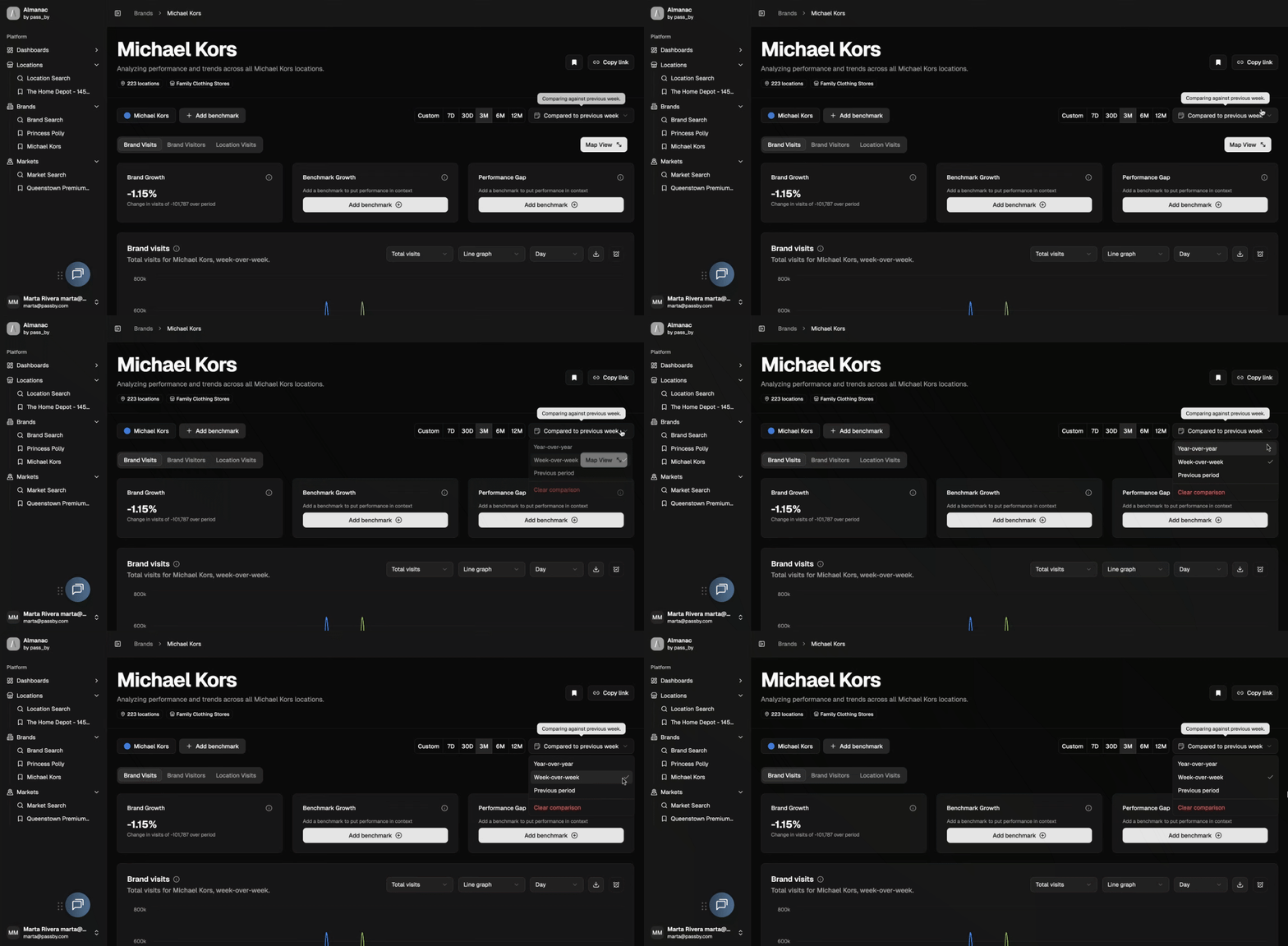
You can add time-based comparisons to understand performance changes over time. By default, Almanac compares data year-over-year using the 4-5-4 retail calendar, ensuring consistent week alignment across years.
Other comparison options include:
- Week-over-Week
- Previous Period (e.g., comparing the last 3 months with the 3 months before)
These comparisons are displayed directly in your charts and metric cards for quick, contextual insight.
Data Freshness
A data freshness icon appears in the filter bar and other areas of the platform, showing when the data was last updated. Most data is refreshed once all contributing sources have been processed, typically resulting in a 4–5 day lag from the latest available date.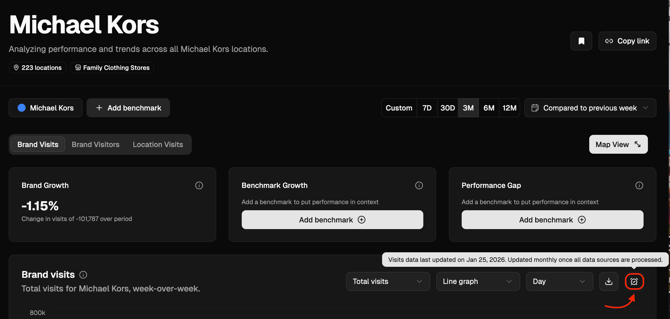
Note: All default date selections are relative to the most recent available data.
Tips & Tricks
- Use relative ranges like “Last 3 Months” to keep dashboards automatically updated.
- For static reporting, choose fixed dates to lock in specific timeframes.
- Add comparisons (e.g., YoY or WoW) to visualize performance changes instantly.
- Hover over the data freshness icon for the most recent update timestamp.
- Combine date filters with Segments and Benchmarks for deeper time-based insights.
- The date range carries across when navigating within the same analysis path. For example, if you open a dashboard and then click into a specific location, the selected date range will persist — along with active Segments and Benchmarks.
- If you open a page via the sidebar (such as a Dashboard or bookmarked view), it will load the settings stored with that view instead of inheriting your current date range.
Use Case
Date Picker helps tailor analysis to your reporting goals.
For example, a user tracking store performance might compare “Last 6 Months” vs. “Previous Period” to monitor growth trends while ensuring data reflects the most recent updates.
By giving you control over both time frame and comparison, the Date Picker ensures every view in Almanac remains timely, relevant, and aligned with your business cadence.